Owari Robo · Documentation
Prepare Robo in the console
The console is Robo's management panel. This is where the operator prepares the assistant and gets the code to send to the web designer.
For the person with console accessTurn on the widget
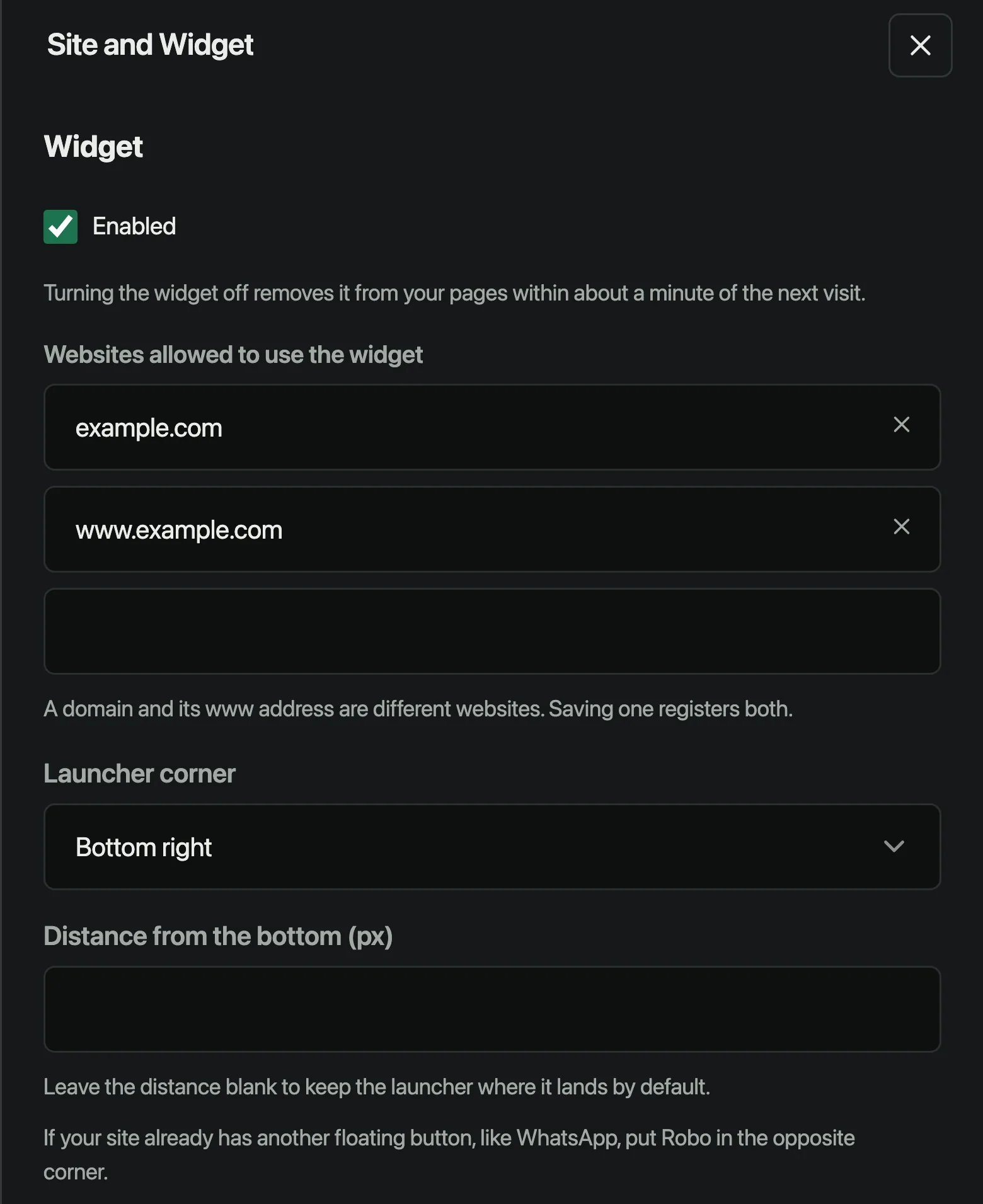
Open the customer's workspace, then Settings → Site and Widget. Turn on Enabled and save. A workspace is the company's area inside Robo.
Open the console
Sign in with the account that manages the customer's assistant.
Authorize the website addresses
In the allowed-websites list, enter the domain without https:// or a page path. Check the main domain, www and any preview or staging address.
Example code · adapt to your website
Example domains
These are fictional. Replace them with the addresses the web designer gives you, and save.
example.com
www.example.com
preview.example.comCopy the real code and send it
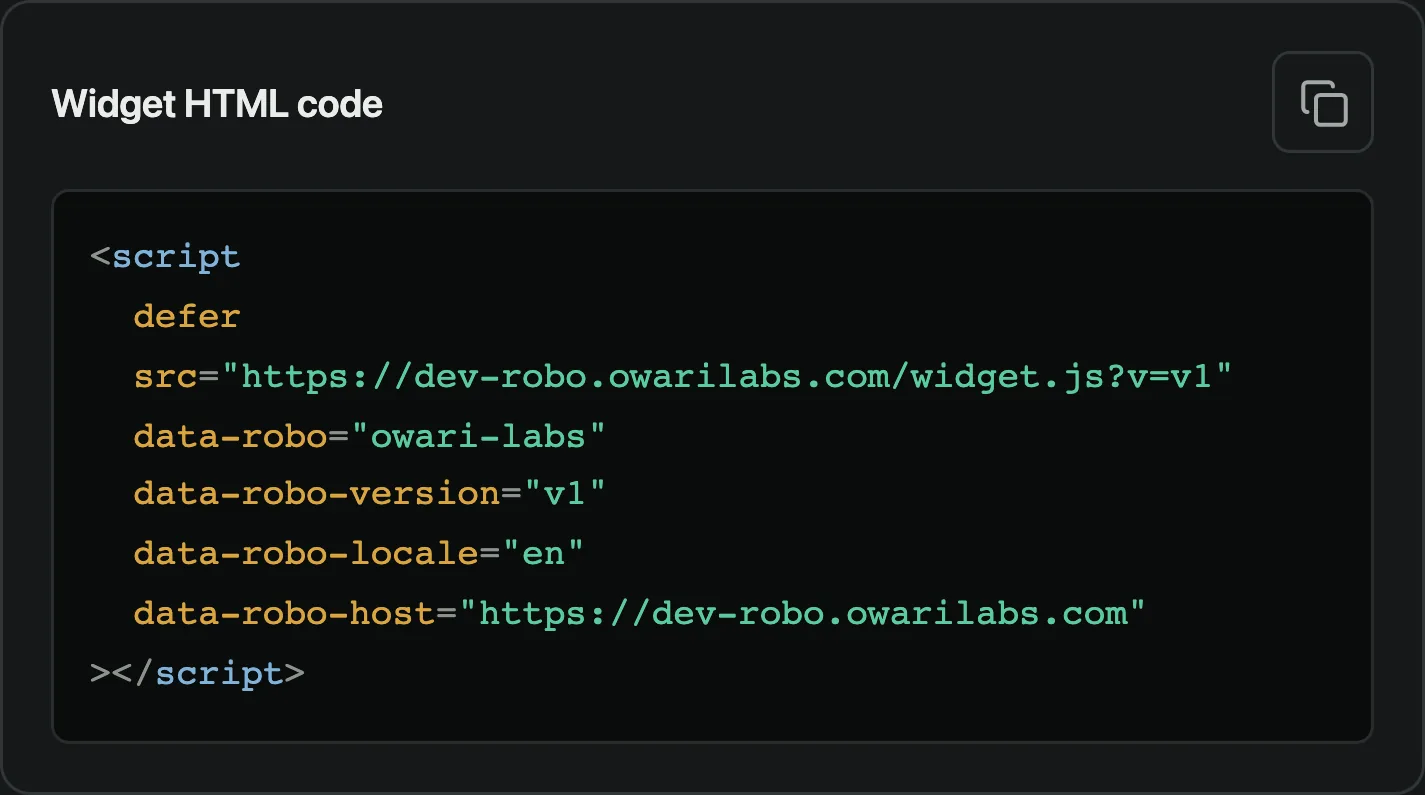
Use the copy button in Widget HTML code. Send the full text to the web designer, along with the allowed domains and the expected assistant name.
Confirm the installation
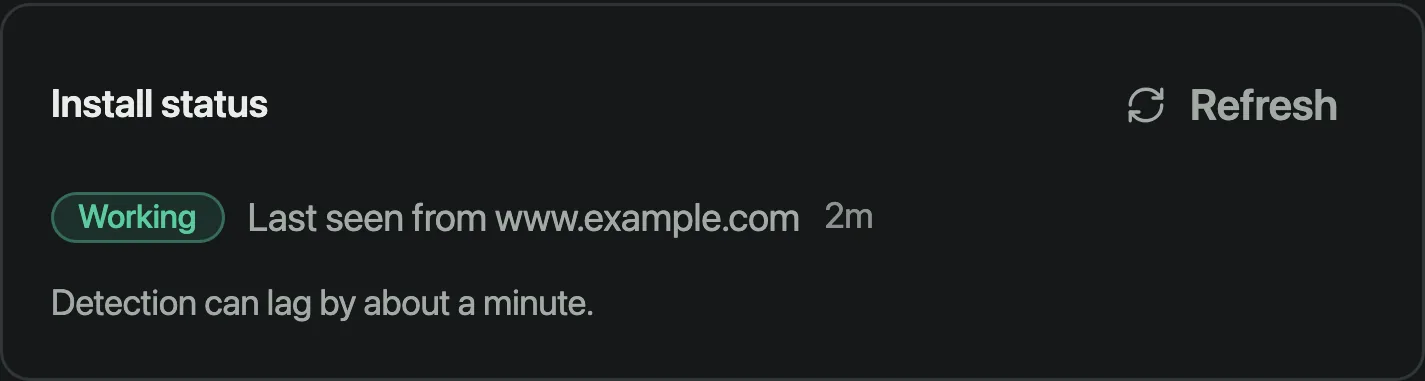
Ask the designer to open the published page. Wait about a minute, then refresh Install status. Working shows that Robo received an allowed request from that website.